
Subtotal ¥0.00
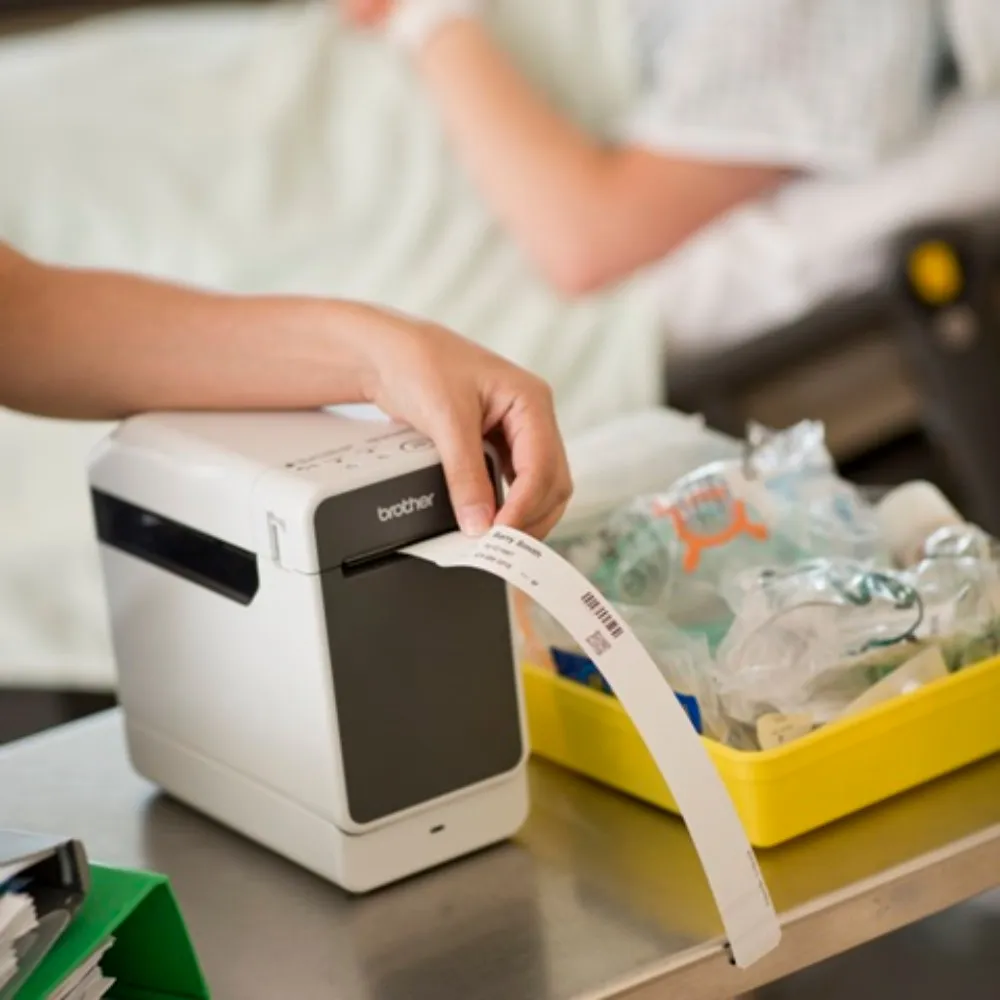
Expert guide to troubleshooting common thermal wristband printing issues with step-by-step fixes for faded prints jams sensor errors and misalignment
Understanding Your Thermal Wristband Printer
Before diving into troubleshooting, it’s crucial to know what type of thermal wristband printer you’re using. There are two main types: direct thermal and thermal transfer.
- Direct thermal wristbands use heat-sensitive material that darkens when heated by the print head. They’re simple and ribbon-free but less durable over time.
- Thermal transfer wristbands use a ribbon between the print head and wristband, transferring ink for longer-lasting prints ideal for extended events or healthcare.
Knowing which one you use helps pinpoint printing problems quickly.
Key Printer Components That Cause 90% of Issues
Most common wristband printer problems stem from a few critical parts:
- Print head: The heart of your printer, responsible for generating the image. Dirt or damage here causes streaks, fading, or no print.
- Platen roller: The rubber roller that feeds the media through. Wear or buildup can cause jams or misfeeds.
- Sensors: Gap, black mark, or transmissive sensors detect label position. Faulty sensors often trigger “media out” errors or misaligned prints.
- Media path: The route wristbands travel inside the printer. Any obstruction or improper loading leads to jams and wrinkles.
Regular inspection and cleaning of these parts can prevent most issues.
LinkWin Compatibility Note
If you’re using LinkWin wristbands, rest assured they work flawlessly with leading desktop thermal printers like Zebra, TSC, Datamax, and many others. We design our wristbands to meet high standards for smooth printing and durability, minimizing common problems like sensor errors or poor print quality across popular brands.
By understanding your printer type and its key components, you’ll save time and stress when troubleshooting thermal wristband printer issues.
Most Common Thermal Wristband Printing Problems & Fixes
If your thermal wristband printer is not printing or giving you trouble, you’re not alone. Here are the most common issues and quick fixes to get you back on track.
Printer Does Not Print at All (Blank Labels)
- Check if the printer is powered on and correctly connected.
- Verify the wristband media is loaded properly.
- Make sure the print head is clean—dirt can block printing.
- Confirm the printer sensors are detecting the wristband correctly.
Faded, Light, or Streaky Prints
- Clean the thermal print head to remove residue.
- Adjust print darkness settings higher in the printer software.
- Use fresh, high-quality wristband media—old or cheap media cause poor quality thermal wristband print.
- Check for worn-out print head; replace if necessary.
Wristbands Print Too Dark or Smudged
- Lower the print darkness or speed settings.
- Ensure the platen roller is clean and undamaged.
- Avoid using thermal transfer settings on direct thermal wristbands.
- Let prints cool before handling to prevent smudging.
Vertical or Horizontal White Lines
- This usually means dirt or damage on the print head or platen roller.
- Clean both carefully with recommended cleaning supplies.
Wristbands Print Off-Center or Misaligned
- Run the wristband printer calibration steps to realign.
- Check sensor settings, especially gap or black mark sensors.
- Confirm correct wristband size is selected in your printer driver.
Constant Media Jams or “Paper Out” Errors
- Inspect media path for obstructions or curled wristbands.
- Make sure wristbands are loaded properly and within manufacturer specifications.
- Clean sensors to ensure they detect media correctly.
Sensor Errors (Gap, Black Mark, or Transmissive Sensor Failure)
- Clean sensors to remove dust or residue.
- Verify sensor alignment and sensitivity settings.
- Replace faulty sensors if cleaning doesn’t help.
Wrinkled or Creased Prints
- Check if wristbands are properly loaded without folds.
- Make sure the platen roller isn’t worn or loose.
- Avoid using low-quality or damaged media that wrinkles easily.
Printer Feeds Multiple Wristbands at Once
- Adjust media feed settings or sensor sensitivity.
- Inspect media for stuck-together wristbands or static issues.
Error Codes Displayed (Zebra-Specific and Common Codes Explained)
- Most printers show error codes when there’s a problem—like print head open, paper jam, or ribbon out.
- Refer to the Zebra Z-Band printing problems guide or your printer manual for specifics.
Printer Stops Mid-Batch
- Check for overheating—give the printer time to cool.
- Review batch settings for possible errors or driver issues.
- Ensure stable power supply and connection.
Wristbands Curl or Wrinkle After Printing
- Store wristbands flat in a cool, dry place.
- Use recommended media to reduce curling.
- Cool prints before stacking or using.
Poor Durability (Prints Rub Off or Fade Quickly)
- Use the right type of thermal wristbands—direct thermal vs thermal transfer matters here.
- Clean print head regularly.
- Avoid exposing wristbands to harsh sunlight or chemicals.
Printer Overheats or Shuts Down
- Ensure proper ventilation around the printer.
- Avoid long continuous print runs—pause to let the printer cool.
- Regular maintenance helps prevent overheating.
By understanding and tackling these common thermal wristband printer issues, you save time and keep your print quality top-notch. For any persistent problems, running a full printer diagnostic or contacting LinkWin support is always a good move.
Step-by-Step Troubleshooting Checklist
When your thermal wristband printer runs into trouble, a quick check can save you a lot of time. Here’s a simple 30-second quick test to start with:
- Make sure the printer is turned on and connected.
- Check that the wristband roll is loaded correctly and not empty.
- Look for obvious jams or blockages in the media path.
- Confirm printer sensors are clean and free from dust.
- Run a test print using the printer’s built-in functions.
If the problem isn’t fixed, move on to the 5-minute full diagnostic routine:
- Clean the print head and platen roller to remove dirt or residue – often the cause of faded and streaky prints.
- Inspect the media sensors (gap, black mark, or transmissive sensors) for proper function and alignment.
- Check printer settings like print darkness and speed; adjust if prints come out too light, dark, or smudged.
- Review any error codes displayed—these often point directly to the issue (common ones include media jams, sensor errors, or print head issues).
- Check the media for damage or wrinkling, and make sure you’re using LinkWin-approved wristbands, designed for Zebra, TSC, Datamax, and other popular thermal printers.
- If prints are misaligned, recalibrate the wristband printer using the manual steps provided in your printer’s user guide.
When to Call LinkWin Support
If you’ve run through these steps and still face issues like:
- Printer stops mid-batch repeatedly,
- Sensors keep throwing errors despite cleaning,
- Persistent media jams or curling wristbands,
- Poor print quality that doesn’t improve after cleaning,
- Error codes you can’t resolve with the guide,
it’s time to reach out to LinkWin support. Our team offers lifetime support and can help troubleshoot deeper hardware or software problems for your thermal wristband printer. Don’t hesitate—getting professional help prevents downtime and ensures reliable wristband printing every time.
Preventive Maintenance to Avoid Future Issues
Keeping your thermal wristband printer in top shape means fewer headaches down the road. Here’s a straightforward maintenance routine to keep things running smoothly.
Daily Cleaning
- Clean the print head: Use isopropyl alcohol and a lint-free cloth or cleaning pen to wipe the print head gently. This prevents build-up that causes faded or streaky prints.
- Check the platen roller: Wipe off any dust or debris to avoid media jams.
- Remove dust from sensors: Dust can cause sensor errors or misreads, so a quick clean helps.
Weekly Maintenance
- Full media path check: Make sure there’s nothing stuck or curled inside the printer, reducing constant media jams or “paper out” errors.
- Inspect wristbands: Check that your stock is free from dust or moisture, which can affect print quality.
Monthly Deep Clean
- Disassemble and clean: Remove the platen roller and clean both it and the print head carefully.
- Lubricate moving parts: Use manufacturer-recommended lubricants sparingly to keep rollers moving smoothly.
Best Storage Practices for Thermal Wristbands
- Store wristbands in a cool, dry place away from direct sunlight.
- Keep them in their original packaging until use to prevent dust or moisture buildup.
- Avoid extreme temperatures that can cause wristbands to curl or wrinkle post-print.
When to Replace the Print Head
The print head is the heart of your thermal wristband printer. Over time, even with regular cleaning, it will wear down and cause poor quality thermal wristband print like fading or streaking.
- If cleaning doesn’t fix faded or streaky prints, it’s time to replace the print head.
- Follow LinkWin’s lifetime support tips: keep track of print volumes and replace your print head proactively—usually after 50 to 100 km of printing.
Regular cleaning and proper care can prevent over 90% of thermal wristband printer troubleshooting issues. Stick to this preventive maintenance plan to avoid downtime and keep your prints crisp and reliable every time.
Choosing the Right Thermal Wristbands for Reliability
Picking the right thermal wristbands is key to avoiding printing headaches. In fact, around 70% of common thermal wristband printer problems come from using cheap or low-quality wristbands. These often cause poor quality thermal wristband print issues like fading, smudging, and jams.
At LinkWin, our wristbands are designed to eliminate these common problems. They have consistent thickness, superior coating, and are built specifically for both direct thermal and thermal transfer printing. This means you get sharper, longer-lasting prints without the usual wear and tear on your printer.
Why cheap wristbands cause 70% of printing failures:
- Uneven media thickness leads to sensor errors
- Poor thermal coating causes faded or streaky prints
- Low-quality materials increase media jams and wrinkles
- Inconsistent sizing causes print misalignment and wasted wristbands
LinkWin wristband features that fix these issues:
- Premium direct thermal and thermal transfer compatible materials
- Smooth surface for clean print head contact
- Precision-cut sizes tailored for wristband printers like Zebra and TSC
- Durable coating that holds print well without smudging or rubbing off
Direct thermal vs. thermal transfer: which works best for you?
- Direct thermal is cost-effective and great for short-term use, but prints may fade faster if exposed to heat or friction.
- Thermal transfer uses ribbons for stronger, longer-lasting prints—ideal for high-volume events or when durability is a must.
Choosing the right LinkWin wristbands for your specific use case means fewer print errors, less downtime, and a better experience for your event or business.
Advanced Tips for High-Volume Printing Environments
When handling large batches of thermal wristbands, efficiency and reliability are key. Here are some advanced tips to keep your wristband printer running smoothly.
Optimize Printer Settings for Wristbands
- Adjust print speed and darkness: Faster speeds can cause light or streaky prints. Balance speed with quality by lowering speed and increasing darkness slightly.
- Calibrate sensors regularly: Proper sensor calibration avoids media jams and misalignment, especially important when switching wristband types.
- Set correct media type: Select direct thermal or thermal transfer in your printer settings depending on the wristbands you’re using to prevent poor quality thermal wristband print.
Batch Printing Best Practices
- Use batch modes with pause options: Print in batches but pause between them to inspect print quality and avoid overheating.
- Keep media loaded properly: Make sure wristbands are loaded straight and correctly to reduce jams and multiple feeds.
- Regular break times: For high-volume prints, give your printer cooldown periods to avoid shutdowns and sensor errors during continuous runs.
Integrate with Event Management Software
- LinkWin wristbands work seamlessly with popular software like Eventbrite and iZettle, which streamlines batch printing and label data syncing.
- Set up printer profiles within your software to ensure proper wristband size, print layout, and alignment, cutting down on wristband printing misalignment errors.
- Use software to manage print queues and monitor printer states remotely — helpful for on-the-fly troubleshooting and avoiding mid-batch stops.
By applying these tips, you’ll reduce thermal wristband printer troubleshooting time and enhance print consistency in busy, large-scale environments.
